 Digital Vikingz
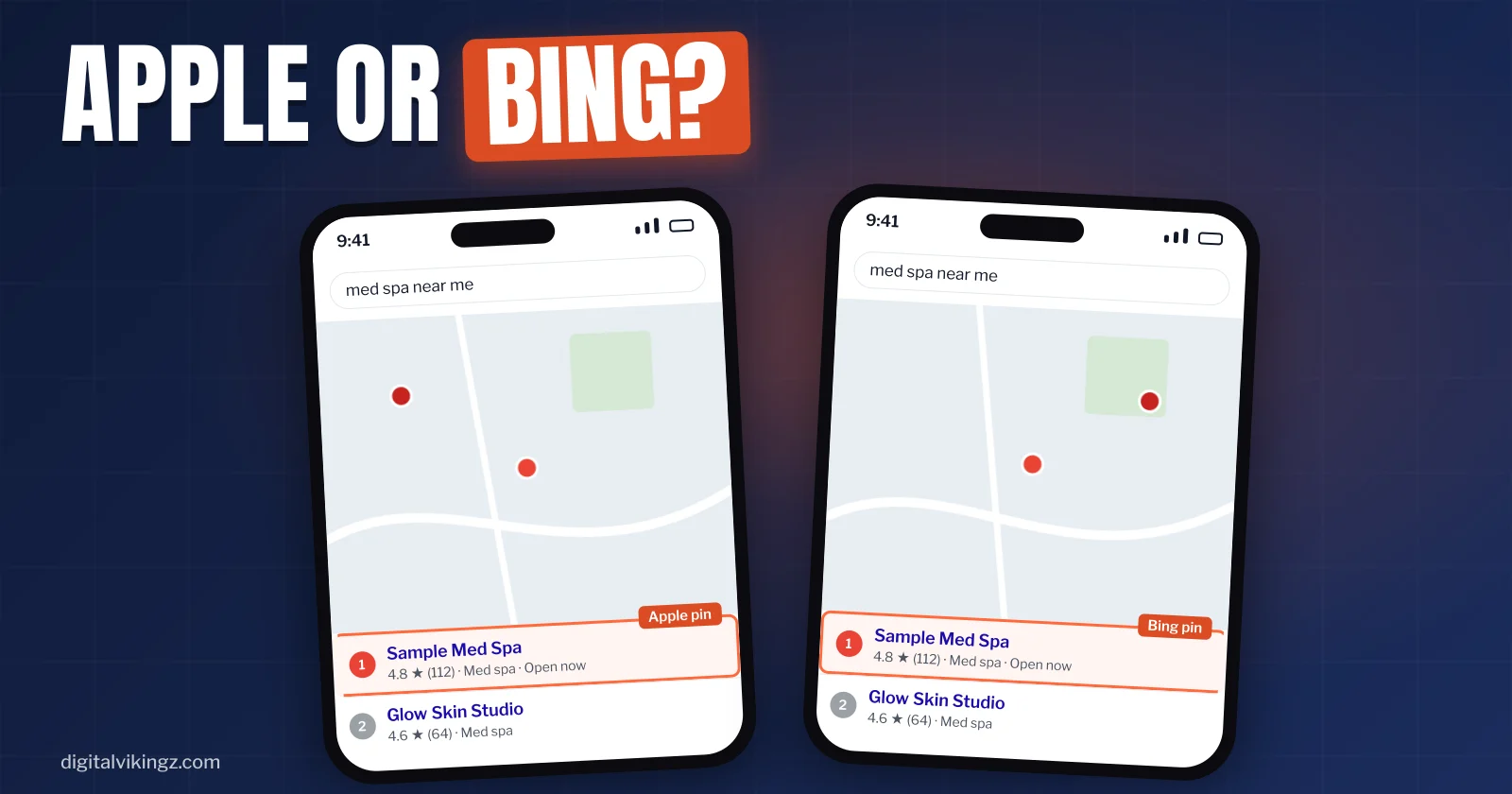
Your Google Business Profile covers Google. Your customers also search on iPhones and on Bing.
Apple Business Connect vs Bing Places is a question of order: Bing Places is free, Apple's pages show no price, and you set up both after your Google Business Profile. Apple Business Connect is now Apple Business, and Bing Places can copy your Google profile in one import.
Each listing controls a different map. All three need the same name, address, phone and hours, written the same way, on the same day, by the same person. Set up Apple Business first when most customers use iPhones, and check all three listings once a month.
What is Apple Business, and what happened to Apple Business Connect?
Apple Business is the current name for Apple Business Connect, the tool that lets you claim and edit your business listing in Apple Maps. Apple folded Business Connect, Business Manager and Business Essentials into one platform, named Apple Business, in 2026.
The platform has two sides. Run covers devices, apps and security, and Grow covers Maps, brands, ads, actions and insights, as the Apple Business page lists them.
Your listing work sits under Maps. That is the Grow side.
Guides dated 2023 to 2025 still say Apple Business Connect, and owners still search that name. Take the old advice with care.
Sample: a plumber in Austin opens a 2024 guide that says Apple Business Connect, then finds that business.apple.com is the site Apple now uses. Same tool. New name.
A listing claimed under the old name is the question owners ask next.
Do listings claimed under Apple Business Connect carry over?
Apple's pages we read on 22 November 2026 do not say what happens to an old listing, so sign in to Apple Business and check. Search results mention an automatic move of claimed locations. We could not open Apple's announcement, so we do not state it as fact, and we advise a quick check.
The Run side covers company devices, so a listing owner needs only the Maps tools under Grow. Bing Places claims a different map, and the two listings control different things.
What Apple Business and Bing Places each control
Apple Business controls how your business appears in Apple Maps, and Bing Places controls how it appears on Bing and Bing Maps. Apple Business lets you claim your location and control its logo and hours.
Microsoft calls its full product Bing Places for Business. Bing Places gives you a portal at bing.com/forbusiness to claim, edit and update your listing. Microsoft's October 2025 announcement lists deeper Bing Maps and Copilot integration as a future plan.
Sample: a customer in Austin searches Apple Maps for a drain cleaner and sees your Apple Business place card. A Bing search from a laptop shows your Bing Places listing instead. Accuracy is the one thing you control on every map.
Does either listing give you control over ranking?
No page we read from Apple or Microsoft says either listing gives you control over ranking. What you do control is the accuracy of the details each map shows.
The levers for ranking on Google Maps belong to a different job. Accurate details only help when customers use that map, for example when an iPhone owner opens Apple Maps to find a plumber. That is why the order matters.
How many of your customers use Apple Maps or Bing?
No first-party source we read gives a dated figure for how many local customers use Apple Maps or Bing, so we use none. Guides that quote reach figures often name no measurement, so such numbers do not size your own audience.
Your own analytics report the operating system of every visitor, so you can count iPhones in a few minutes. That report sizes your iPhone audience better than any guide, because it counts the real visitors your website already receives each month. Your own numbers beat a guide's, every time.
Sample: an HVAC company in Columbus opens its visitor report and reads the share of iPhone visits before it picks a first listing. Apple Business offers Insights, and Bing Places offers dashboards, so each listing reports its own numbers once claimed. The report is easy to read once each link carries its own tag.
Where to read your own iPhone and Bing traffic
Your analytics show iPhone and Bing traffic once each listing link carries its own UTM source, which takes about two minutes per link. Use the same UTM convention as the Google profile. Change only the source value.
Sample: a dental clinic in Denver tags its Apple link utm_source=apple and its Bing link utm_source=bing. It then reads both in one GA4 report.
We have not tested every Apple field with UTM tags, so check that the website link saves as typed. Our guide to Google Business Profile UTM tracking shows the tag format and the GA4 report that reads it.
The next job is to claim the listings once the numbers are in.
What to have ready before you claim a listing
Have three things ready before you claim a listing: a verified Google profile, one agreed set of details and an account for each platform. The three things to have ready are listed below:
- Verified Google profile: the source Bing imports from and the other two should match.
- One agreed set of details: name, address, phone, hours, website link and categories, written down once.
- An account for each platform: an Apple Account for Apple Business and a Microsoft account for Bing Places.
Sample: a dental clinic in Denver writes its name, address, phone and hours into one note before it opens either portal. The claim steps are short once those three are ready.
How do you set up and verify each listing?
You set up both listings by signing in, claiming or adding your location, verifying ownership and editing your details. Bing Places is free. So says Microsoft's October 2025 announcement. Apple's pages we read do not show a price for the Maps tools.
Claim both on the same day. The slower verification then does not hold up the other, and you spend one afternoon on the job instead of two. Sample: an HVAC company in Columbus claims Apple Business in the morning and imports Bing Places the same afternoon.
The steps start with Apple.
Claiming a location in Apple Business
You claim a location in Apple Business by signing in, finding or adding the location, verifying ownership and editing the place card. The steps to claim a location in Apple Business are listed below:
- Sign in. Open Apple Business with an Apple Account and choose Maps.
- Find the location. Search for your business and pick it, or add it when Maps does not list it.
- Verify ownership. Follow the verification option Apple offers for your business.
- Edit the place card. Check the logo, hours, website link and category before you save.
- Check the public view. Search your business in Apple Maps. Read the card as a customer does, on a phone, with your thumb.
Bing Places has a shorter start when your Google profile is ready.
Importing your Google profile into Bing Places
Bing Places imports a Google Business Profile into a new listing and keeps the name, hours and contact details. Microsoft's October 2025 announcement describes the import as faster and more reliable, with import status shown as it happens.
No Microsoft page we read says the import keeps syncing, so treat it as a one-time copy. Edit your Google profile first and recheck Bing afterward.
The steps to import a Google profile into Bing Places are listed below:
- Sign in. Open bing.com/forbusiness with a Microsoft account.
- Choose import. Pick the option that copies a Google Business Profile into the new listing in a single pass.
- Select the profile. Connect the Google account that owns the location.
- Check the fields. Compare name, hours, phone and website link with Google.
- Publish and verify. Submit the listing and finish the verification Bing asks for.
Sample: a dental clinic in Denver imports its profile, then finds one old holiday hour that needs a manual fix. Not every business can use the Apple side, which raises the next question.
Can a service-area business use Apple Business?
A service-area business that hides its address may not qualify for an Apple Maps listing, so check Apple's current rules first. A plumber with a hidden address may start with Bing Places while that check runs.
Sample: a roofer in Phoenix serves homes across the metro and shows no shop address. Setup done, the next question is what each listing lets you do.
Features that differ between Apple Business and Bing Places
Apple Business adds actions, brand tools and Insights, and Bing Places adds Google import, dashboards and bulk edits. The table below compares what each listing offers on the points a local business weighs first:
| Feature | Apple Business | Bing Places | Source status |
|---|---|---|---|
| Cost | No price shown on Apple's pages we read | Free per Microsoft, October 2025 | Verified for Bing, Open for Apple |
| Where it shows | Apple Maps | Bing and Bing Maps | Verified for Apple, Open for Bing |
| Start from Google data | Not stated on the pages we read | Import from a Google Business Profile | Verified for Bing |
| Hours and logo | You control logo and hours | Hours and contact details come across with import | Verified |
| Bookings and appointments | Custom Actions | Not named in Microsoft's announcement | Verified for Apple |
| Performance data | Insights | Dashboards | Verified |
| Bulk edits | Not stated on the pages we read | Bulk editing | Verified for Bing |
We read Apple's edge as actions customers tap and Bing's edge as a fast start from Google data. Photo rules differ on each platform, and the Google side is set out in our guide to Google Business Profile photos.
Sample: a med spa in Denver that books by appointment has a use for Apple's Custom Actions, which cover bookings and appointments.
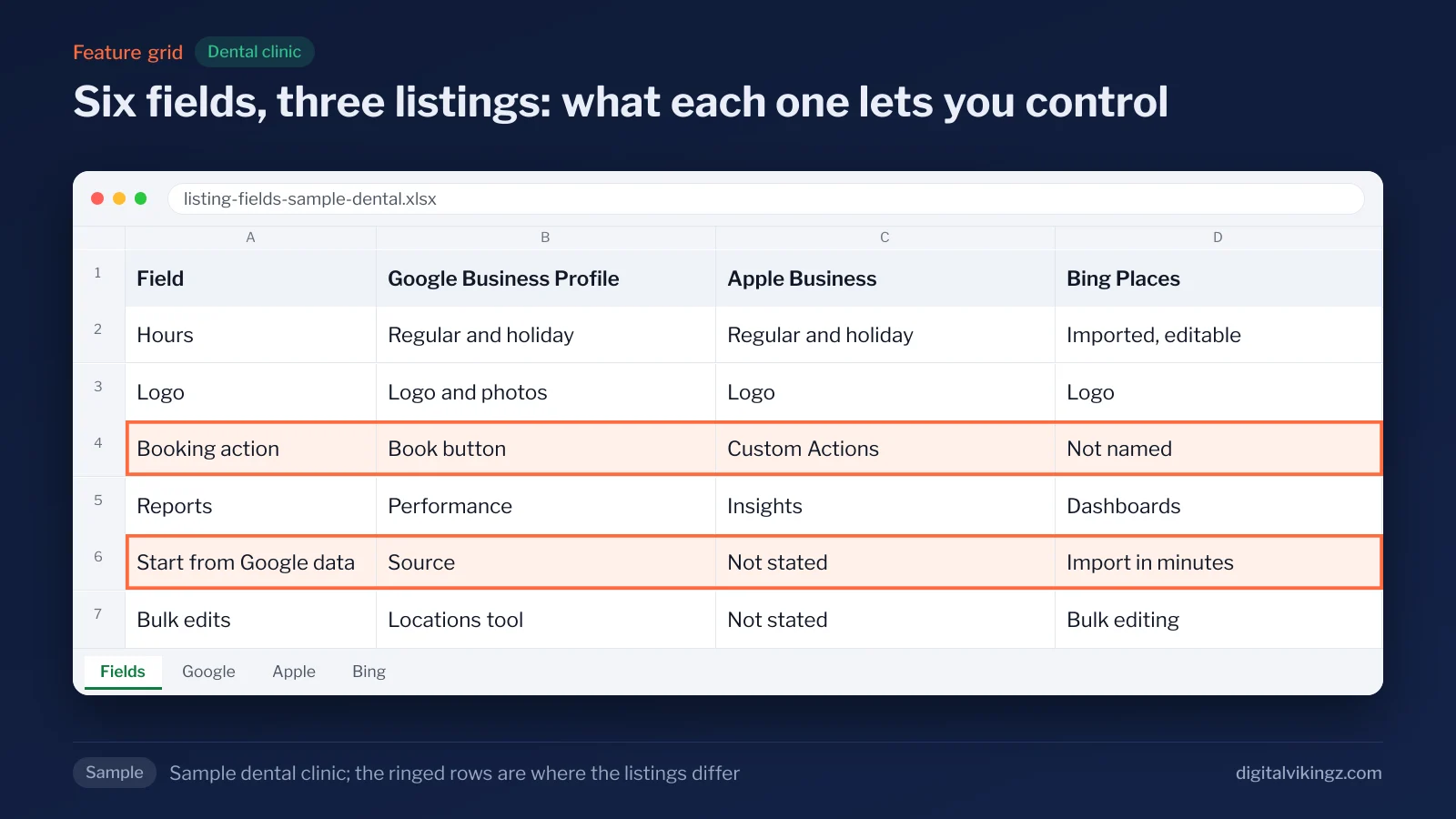
The sample grid shows the same six fields on the three listings. The three listings share name, address, phone, hours and categories.
How do you keep Apple, Bing and Google details the same?
You keep Apple, Bing and Google details the same by editing the Google Business Profile first and copying every change to the other two. Edit Google first. Then copy each change to Apple and Bing on the same day, before a customer finds the old hours on a map.
The details to match on all three listings are listed below:
- Name: the business name exactly as it appears on the sign.
- Address: the street address, or the hidden address setting where a platform allows one.
- Phone: the main number customers call.
- Hours: regular hours plus holiday and special hours.
- Website link: the same landing page, tagged for each platform.
- Categories: the closest category each platform offers.
Directory citations beyond these three, such as Yelp or Facebook, follow one rule. Copy the Google details exactly.
Sample: an HVAC company in Columbus changes its holiday hours on Google and forgets the other two, so Apple still shows normal hours.
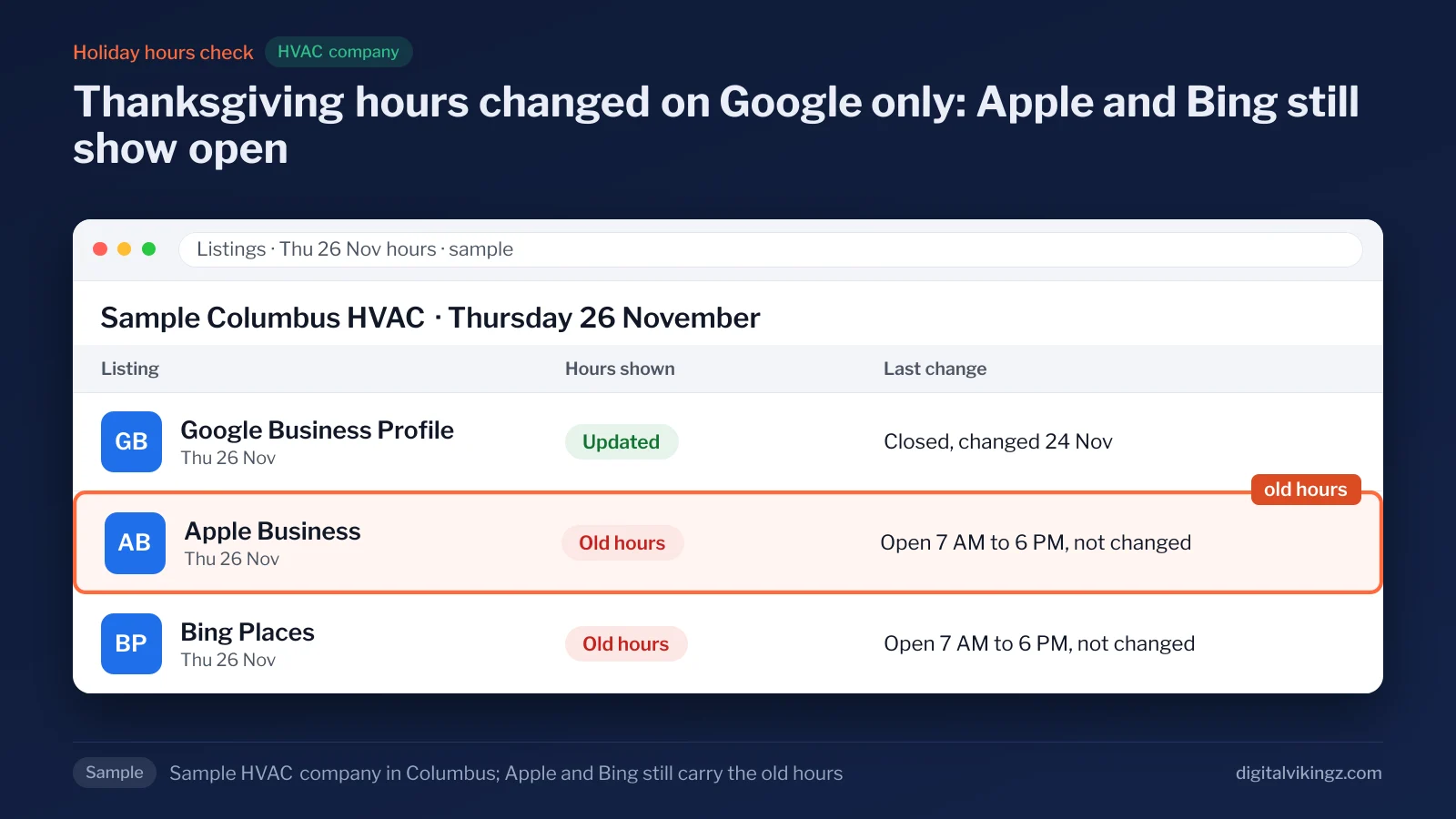
The sample shows the holiday hours changed on Google and still old on Apple and Bing. How often to compare them is the next decision.
How often to check the three listings
You should compare the three listings once a month and after every change to hours, address, phone or categories. No first-party page we read sets a check interval, so the monthly rhythm is our advice.
Each monthly check is a small local SEO audit of three listings, for example a ten-minute read of name, phone and hours on each map. A local SEO audit in seven steps checks listings alongside the profile, reviews and website.
Once the three match, one question is left: which one comes first.
Which listing do you set up first?
Set up Apple Business first when most of your customers use iPhones, and Bing Places first when you want a quick copy of Google.
Three facts decide the order: which phones your customers use, whether your address shows, and how much time you have this week. The three facts and what each one points to are listed below:
- Your customers: iPhone-heavy customers point to Apple Business first, since Apple Maps is the iPhone's own map.
- Your address: a hidden address may block the Apple listing, so Bing Places can come first.
- Your time: Bing's Google import is the fastest start, so a busy week points to Bing.
The table turns those facts into five sample businesses.
Google comes first, and the guide to optimize your Google Business Profile in 13 steps shows how. Bing is free and Apple's pages we read show no price, so the order only sets which work comes first.
The order for five kinds of local business
The table below shows our suggested order for five sample businesses, based on address and customers, not on measured results:
| Kind of business | Sample search | Set up first | Why (our advice) |
|---|---|---|---|
| Plumber, hides address | "emergency plumber near me" on a phone | Bing Places, then Apple Business when eligible | Apple may not accept a hidden address, and Bing import is quick. |
| HVAC company, shows shop | "AC repair near me" on an iPhone | Apple Business | iPhone customers open Apple Maps, and the shop address is public. |
| Dental clinic, storefront | "dentist accepting new patients" in a maps app | Apple Business | Appointments suit Custom Actions, and the address is public. |
| Med spa, storefront | "med spa near me" in a maps app | Apple Business | A visual place card and appointment actions fit a booked service. |
| Roofer, hides address | "roof repair near me" on a laptop | Bing Places, then Apple Business when eligible | A hidden address may block Apple, and import is quick. |
Your own analytics can reverse any row. Read the iPhone share first.
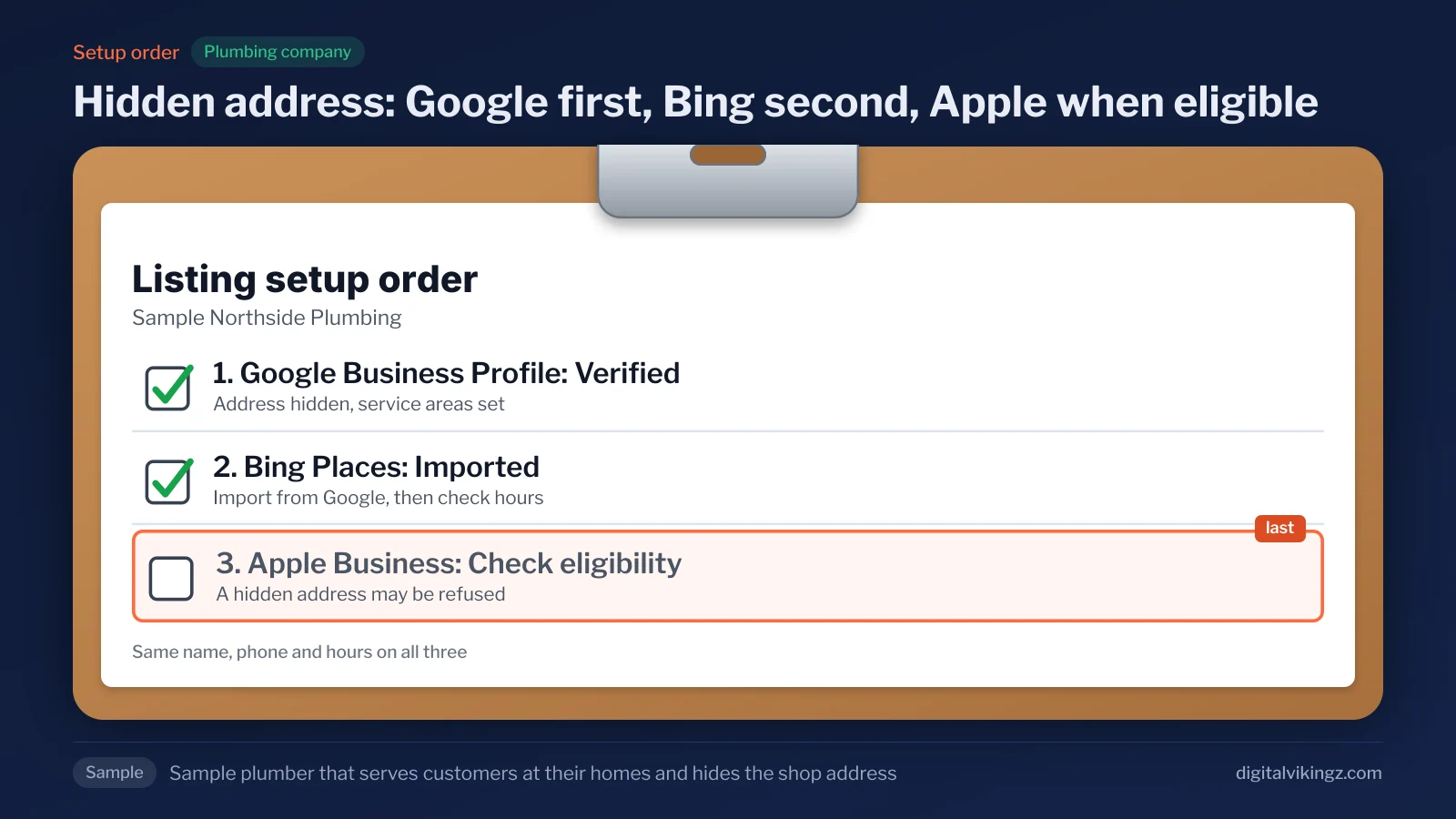
The sample plumber hides the shop address, so Bing comes before Apple. Google shows Verified, Bing shows Imported and Apple shows Check eligibility.
Do you need both Apple Business and Bing Places?
Yes, set up both when you can keep them current, because Bing is free, Apple shows no price on the pages we read, and each covers customers that Google alone does not. Keep Google and the listing your customers use more when time allows only two.
Problems after the claim are the last thing to plan for.
What can go wrong after you claim a listing?
Three things can go wrong after you claim a listing: verification stalls, a duplicate appears or the details drift apart. Name, address and phone drift is the problem our Local SEO and Google Business Profile service keeps in check across your profile.
Sample: a roofer in Phoenix imports to Bing, then sees the listing sit on pending for weeks. Stalled verification comes first.
Stuck verification, pending status and duplicate listings
Owners report three stalls on these listings: a Bing publish status that stays pending, a code that does not arrive and a duplicate listing. Microsoft Q&A threads we read on 22 November 2026 show all three. None had a fix from Microsoft staff.
The fix route for each stall is listed below:
- Pending after import. Contact Bing Places support with the case details, because forum volunteers have no power to change a listing.
- Code not arriving. Request the code again, then use Bing Places support when the second try fails.
- Duplicate listing. Leave the duplicate unverified and ask Bing Places support to merge it into the verified listing.
- Slow Apple verification. Check the status in Apple Business, then write to Apple Support if it stalls, since the pages we read give no single timeline.
We have not run these routes on a client listing, so the steps come from the Microsoft Q&A answers we read. Do not verify the duplicate.
One neighbour of these listings needs one sentence.
Do AI assistants read these listings?
Sources disagree on whether AI assistants read Apple Business or Bing Places listings, and our guide to where AI assistants find a local business to recommend covers how they pick one.
What to do this week
Fix your Google Business Profile first, then claim Apple Business, import Bing Places and add a monthly check to your calendar. The steps for this week are listed below:
- Fix Google. Correct name, address, phone, hours and categories on the Google Business Profile.
- Claim Apple. Open Apple Business and claim the location, with the Maps tools under Grow.
- Import Bing. Copy the Google profile into Bing Places and check each field.
- Tag the links. Give each website link its own UTM source.
- Book the check. Put a monthly three-listing comparison in your calendar.
Each step touches one thing from the page: the name, the controls, the reach, the setup, the features, the match and the order. One decision remains, which listing first, and the order table answers it.
Frequently asked questions about Apple Business and Bing Places
Are Apple Business and Bing Places free?
Bing Places is free, and the Apple pages we read show no price for the Maps tools. Check Apple's page for the current wording.
How long does Apple Business verification take?
Apple's pages we read give no single time, and vendor guides quote anything from days to weeks. Check the status in Apple Business.
Should you fix your Google Business Profile before the other two?
Yes, fix the Google profile first, because Bing copies it and Apple and Bing should both match it. Edit Google first, then copy each change across.
Does the old Apple Business Connect web address still work?
Yes, businessconnect.apple.com redirects to business.apple.com, which we checked on 22 November 2026. Recheck it before you rely on an old bookmark.
Do you need a paid tool to manage both listings?
No, a paid tool only saves time when you manage many locations, because the Bing portal is free and Apple shows no price on the pages we read. One business with one address can edit by hand.
Where to start
Fix your Google Business Profile, claim Apple Business, import Bing Places and put one check in the calendar. You can also see a free sample of Daily Google Posts for your profile before you decide on anything else.