 Digital Vikingz
A Google Business Profile is verified by signing in, adding or claiming the profile, then completing the verification method Google offers for that profile. Google decides which verification methods appear under Get verified, and owners do not switch to another method.
The usual methods are video recording, phone or text, email, a live video call and a postcard. Google states that verification reviews take up to 5 business days, and most postcard codes arrive within 14 days.
A rejected video, a pending review or a request to verify again each has one fix, starting with the status shown on the profile. A verified profile can show on Google Maps and Search, while a suspended Google Business Profile needs an appeal, not verification.
What does it mean to verify a Google Business Profile?
Verifying a Google Business Profile is Google's check that the profile manager represents an existing business at that address or service area. Google's help page states that verified owners "gain ownership of your Business Profile and can make sure your business info is accurate."
Google adds that owners "need to verify" before they edit business info or "interact with customers." Google states: "Only verified businesses can show their business info on Maps and Search."
Google My Business was the former name of the Google Business Profile, and owners still search for it by that name. A business that wants to manage its details on Google Maps has to complete verification before the other steps to optimize a Google Business Profile. Verification is open only to businesses that meet Google's eligibility rules.
Which businesses can verify a Google Business Profile?
A business can verify a Google Business Profile when it serves customers in person, at its own location or at the customer's location.
The three business types Google verifies are listed below:
- Storefront business: serves customers in person at a location with permanent on-site signage.
- Service-area business: visits or delivers to customers and does not serve them at its address.
- Hybrid business: serves customers at its location and also visits or delivers.
Google states: "Only business owners or authorized representatives may verify a business." Google adds that an online-only business is "not eligible for a Business Profile and can't be verified."
Google's guidelines state: "P.O. boxes or mailboxes located at remote locations aren't acceptable." A virtual office is not eligible either, so a home base or a staffed office is the address Google expects. An eligible business pays nothing to verify.
Is Google Business Profile verification free?
Google Business Profile verification is free, and Google states that creating a Business Profile and listing a business on Google is free. Google's verify help page lists no fee for any verification method.
Offers of paid "instant verification" break the rule that only owners or authorized representatives verify a Google Business Profile. Google never asks for the verification code. The free process follows the same five steps for every eligible business.
How do you verify a Google Business Profile?
Verifying a Google Business Profile takes five steps: sign in, find or add the profile, select Get verified, complete the method, then wait.
The steps to verify a Google Business Profile are listed below:
- Sign in: Sign in to the Google Account that manages the business, or create one with any email address.
- Find the profile: Search the business name and city, or "my business," then add or claim the profile when the listing is missing.
- Select Get verified: Open the profile, select Get verified and pick one of the verification methods shown.
- Complete the method: Record the video, enter the code, follow the email or join the live call.
- Wait for review: Wait for Google's review and the confirmation email before you edit key details.
Google's verify help page states that "verification reviews take up to 5 business days." Step 2 splits into two actions, claiming and verifying.
What is the difference between claiming and verifying a Google Business Profile?
Claiming a Google Business Profile adds an existing listing to your Google Account, while verifying proves to Google that you manage that business. Google's help page on adding or claiming a profile says to claim it "so you can verify and control how it shows on Google."
A business missing from Google is added first, and an unclaimed listing is claimed first. Verification follows in both cases. A Google Business Profile already verified by someone else needs an access request to its current owner, not a second verification.
Ownership requests and transfers are a separate subject, covered in a guide to Google Business Profile ownership. Google then shows the verification methods allowed for the profile in the owner's account.
Can you choose how to verify a Google Business Profile?
Google Business Profile owners do not choose the verification method, because Google decides which methods each profile is offered. Google's help page states: "Verification methods are automatically determined by Google and can't be changed."
Google says the options "depend on your business type, public info, region, or business hours." Some profiles need more than one method before Google completes verification. A profile that shows only video, or no postcard, offers only those methods today.
The name, address, category and a phone line that a person answers should be accurate before the owner selects Get verified. Owners report advice to swap phone numbers until a phone option appears, yet changes to business info can trigger re-verification. Six method groups can appear on the Get verified screen.
What are the Google Business Profile verification methods?
Google Business Profile verification methods are six ways Google confirms a business: video recording, phone or text, email, live video call, postcard and instant verification. The Get verified screen lists only the methods Google offers for that profile, so two businesses on one street can see different options.
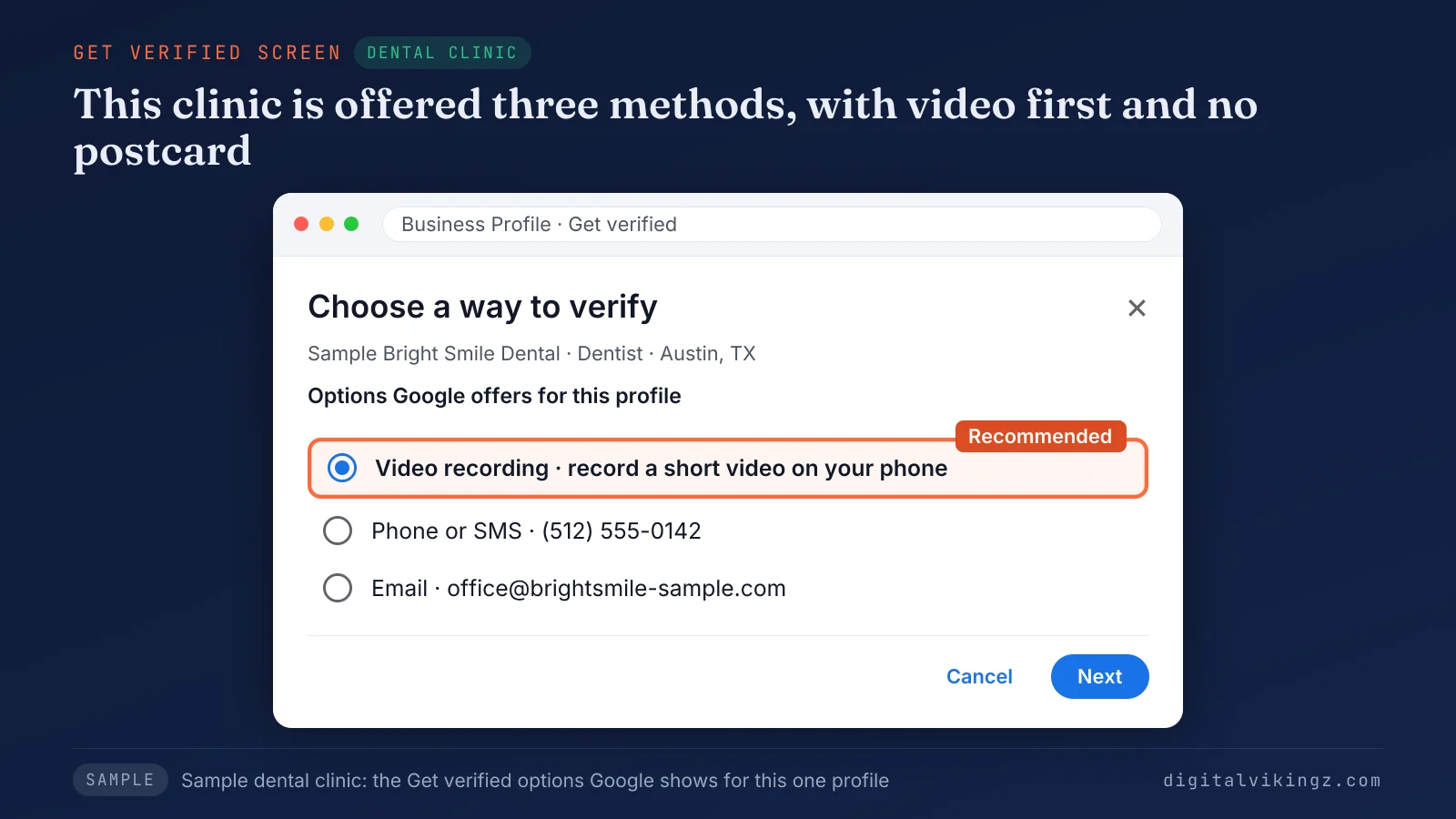
The sample dental clinic sees three verification methods, with video recording first, and no postcard option. Video recording comes first, because Google recommends it where a profile is eligible.
1. Video recording
Video recording is the verification method where the owner films one unedited mobile video that shows the business location, the business and proof of management. Google's help page states: "If your business is eligible for video verification, we recommend that you use this option."
The path is Get verified, then Business video, on a mobile device signed in to the Google Business Profile. The full requirements and the shot order for each business type sit in the section on recording a verification video.
2. Phone call or text message
Phone or text verification sends a code to the business phone number by call or SMS, and the owner enters that code on the profile. The path is Get verified, then Phone or SMS, and the code goes into the Google Business Profile.
Google warns that "Interactive Voice Response (IVR) systems won't get the code." A phone tree or call center line blocks the verification call, so the business needs a direct line that a person answers.
3. Email
Email verification sends the verification steps to the address shown on the verification screen, and the owner follows those steps. The path is Get verified, then Email, from the Google Business Profile.
Google's instruction: "Make sure you can use the email address in the verification screen."
4. Live video call
A live video call verifies a Google Business Profile through a call with a Google support representative, held at the business during its business hours. Google states: "Live video calls are only available within the business hours of your location."
The path is Get verified, then Live video call, which opens a text chat before the representative starts the call.
The three things to show on the call are listed below:
- Current location: outside signs, nearby businesses or a street sign.
- Business or equipment: products, branded equipment, marketing materials or tools.
- Proof of management: employee-only areas, a cash register, keys that open the premises.
Google notes that live video calls may not be available for all businesses.
5. Postcard by mail
Postcard verification mails a 5-digit code to the business address, and the owner enters that code on the Google Business Profile. Google labels the method Mail, and the button on the verification screen reads Postcard.
Google states that "verification through postcard isn't available for all businesses." Google adds: "Most codes arrive within 14 days." Google also states: "Verification codes expire after 30 days."
The three rules while the postcard is in the mail are listed below:
- No edits to name, address or category: the code in the mail stops working after such an edit.
- No new code request: a new request cancels the code already sent.
- No code sharing: the code stays with the owner, and managers or agencies do not need the code.
Google states: "Google will never ask for your verification code."
6. Instant and bulk verification
Instant verification happens when Google verifies a Google Business Profile without a separate method, after Search Console website verification or a bulk verification request. Google states: "In some cases, Google verifies a profile instantly."
Search Console verification proves control of the website and is a separate Google product. Bulk verification covers 10 or more locations of the same business, according to Google's bulk verification help page. The bulk request starts in Business Profile Manager under Verifications, then Chain, then Start.
Service-area businesses and agencies that hold several businesses in one account do not qualify for bulk verification. Google warns: "Uploading a spreadsheet doesn't send a verification request." Video recording has the strictest rules of the six methods.
How do you record a Google Business Profile verification video?
A Google Business Profile verification video is recorded live on a mobile device through the profile, unedited, in one take of at least 30 seconds.
Google's requirements for the verification video are listed below:
- "An unedited, unique, and complete recording with no breaks."
- "At least 30 seconds long."
- "Recorded and uploaded from a mobile device through your Business Profile."
Google's video recording help page states that "pre-recorded videos aren't allowed." The video must not show bank account, tax or ID numbers, private details, or other people's faces.
The steps to record and upload the video are listed below:
- Open the profile: Open the Google Business Profile on a phone and tap Get verified.
- Choose Business video: Tap Business video, read the requirements and allow camera, microphone and location access.
- Record one take: Tap Start recording and film location, business and proof of management without stopping.
- Review the footage: Watch the recording and tap Try again if an item is missing.
- Upload the video: Tap Upload video and wait for Google's review.
The shot order should be planned before recording, because a break in the take starts the verification video over. What the three items look like depends on the business type.
What should a storefront business show in a verification video?
A storefront business shows three things in a verification video: the location, permanent signage with the profile name, and an area only staff can access.
Each item Google asks for in a storefront video pairs with a sample shot for a dental clinic:
| Item Google asks for | Google's examples | Sample shot (dental clinic) |
|---|---|---|
| Location | "street signs, building numbers, nearby businesses" | Corner street sign, then the building number |
| Proof the business exists | Name "clearly printed on a permanent fixture" | The clinic name on the window or wall sign |
| Proof of management | "cash register, kitchen, storage room" or "point-of-sale" | Staff door unlocked, then the front-desk point-of-sale screen |
Google states: "The name shown in your video must match the name on your Business Profile." A hybrid business, such as a clinic that also visits patients at home, follows the storefront rules for its Google Business Profile verification.
A clinic inside a shared building needs its own permanent sign on camera, because a building directory alone does not show the business. A business with no storefront films a different set of shots.
How does a service-area business verify without a storefront?
A service-area business verifies without a storefront by filming nearby street signs, its tools or branded vehicle, and a document matching the profile name. Google's help page states that a home-based service-area business "can record landmarks and signs in your immediate neighborhood to verify the address."
The shot order for one take is listed below:
- Start at the street: Film the street sign and a nearby landmark close to the business address.
- Show the vehicle: Walk to the branded van, show the lettering, then unlock the van on camera.
- Show the tools: Film the tools, equipment or uniform used on jobs.
- Show one document: Film an invoice, permit or utility bill with the business name, covering other numbers.
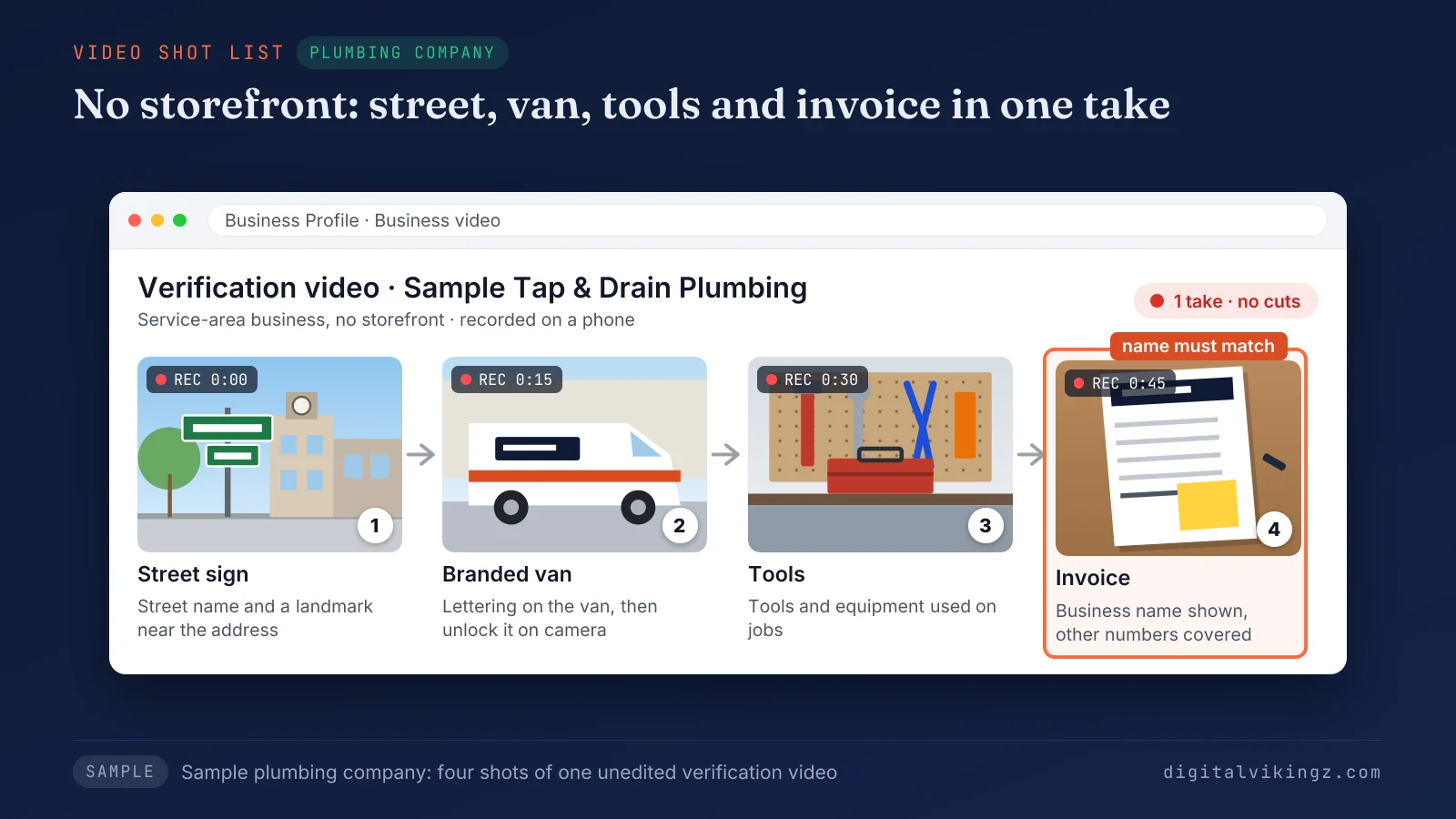
The sample plumbing shot list moves from the street to the van, the tools and a matching invoice in one take. Google names "unlocking a van that has your business branding" as proof of management in a verification video.
Temporary signs or a borrowed address break Google's guidelines and put the profile at risk. A business that does not serve customers at its address should leave the address off the profile.
The service area setting itself is covered in a guide to service-area businesses on Google. Every verification method then waits for Google's review.
How long does Google Business Profile verification take?
Google Business Profile verification reviews take up to 5 business days, according to Google, and on rare occasions they take longer.
Google states these times for each verification method, as read on 19 November 2026:
| Verification method | Time Google states | Google source |
|---|---|---|
| Video recording | Review "can take up to 5 business days" | Video recording help page |
| Phone or text | No separate time stated; review up to 5 business days | Verify help page |
| No separate time stated; review up to 5 business days | Verify help page | |
| Live video call | During the location's business hours | Verify help page |
| Postcard by mail | "Most codes arrive within 14 days"; codes expire after 30 days | Verify help page |
| Instant and bulk | "Instantly" in some cases; bulk time not stated | Verify help page |
Owners report Google Business Profile reviews that run past five business days. A review past five business days calls for the steps in the pending section, not a second submission. The profile shows which stage the verification review has reached.
How do you check Google Business Profile verification status?
Google Business Profile verification status shows on the profile in Business Profile Manager, and each status points to one next step.
Each verification status an owner can see has one meaning and one next step:
| What the profile shows | What the status means | Next step |
|---|---|---|
| Get verified button, never used | Not verified yet | Follow the five steps |
| Video or code submitted, no result yet | Under Google's review, up to 5 business days | Wait without editing key details |
| Confirmation email and full editing | Verified | Complete the profile |
| Get verified appears again | "Google couldn't completely verify your business" | Try another method shown |
| Review issues notice | "Your video wasn't accepted" | Record a new video |
| Request for additional info | Recent edits to business details | Select Get verified and re-verify |
Owners report a "verified" email while the profile status still reads "Not verified". The status in Business Profile Manager is the one Google applies.
The Google Business Profile itself is the status check, and Google's help page links to support for open cases. Two statuses cause most worry: a review that stays pending and a verification that fails.
What should you do when Google Business Profile verification is pending or fails?
Pending Google Business Profile verification needs waiting without edits, and failed verification needs the missing item fixed before the next attempt. Three cases cover most stuck profiles: a review still pending, a video rejected with Review issues, and a profile with no method left.
Why is Google Business Profile verification still pending?
Google Business Profile verification stays pending until Google's review ends, and the name, address and category should stay unchanged during that wait. Google states that changes to business info may require re-verification, so an edit during review can send the profile back to the start.
The same edit rule protects a postcard code still in the mail.
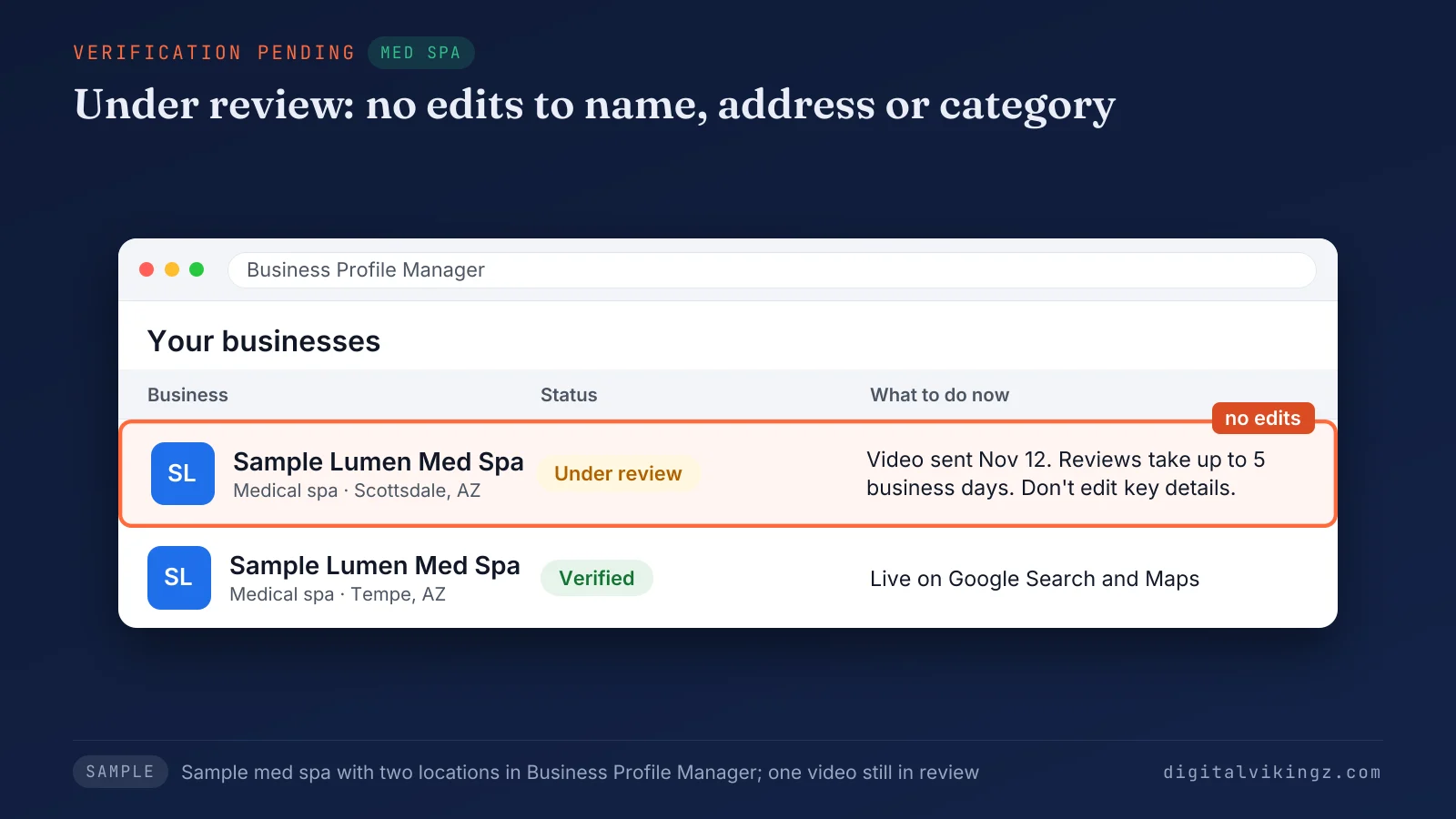
The sample med spa card shows a submitted video under review and a reminder to leave key details unchanged. The owner should try any other verification method the profile still shows once five business days pass.
Google states: "If you're still unable to verify your business, contact support." Owners report waits of weeks on Google's community forum, and several resolved only after a support case. A review that ends in a rejection gives the owner a reason to fix.
Why was a Google Business Profile verification video rejected?
A Google Business Profile verification video is rejected when it misses one of Google's requirements, and the Review issues notice names the missing item.
Each rejection reason Google gives as an example points to one shot that fixes it:
| Reason Google gives (example) | Missing item | Shot to add |
|---|---|---|
| "Business name not visible on storefront." | Proof the business exists | A steady shot of the permanent sign with the profile name |
| "No nearby area shown." | Location | A street sign or landmark before entering |
| "Missing proof of authorization to operate the business." | Proof of management | Unlocking a staff door, the van or a matching permit |
Google asks for a new verification video that repeats everything from the first one and adds the missing item. A rejection can also come from the address side, such as a name that differs from the sign or an address shared with other businesses.
Filming more documents does not fix an address mismatch. The Google Business Profile address and name have to match what the camera shows. Repeated rejections can leave a profile with no method to try.
What if Google shows no verification options?
A Google Business Profile with no verification options left needs a support request, sent after every method Google offered has been tried. Owners call the dead end "No More Ways To Verify," the title of a Google community video.
Google's help page asks owners to try "the available verification methods first," which makes support easier to give.
The items to prepare before contacting support are listed below:
- Business documents: a permit, invoice or utility bill with the exact profile name and address.
- Attempt record: the dates and methods tried, with any Review issues reasons.
- Profile details: the name, address, category and phone exactly as the profile shows them.
Google's guidelines state: "There should only be one profile per business." A second profile for the same business creates a duplicate Google Business Profile rather than a new verification route.
Resolved cases on community and practitioner forums ended with a support review, not a better video. Verified profiles meet a related prompt later, when Google asks to verify again.
Why does Google ask you to verify a Google Business Profile again?
Google asks for re-verification of a Google Business Profile after changes to key business details, most often a new address or a new name.
Google names four edits that can trigger re-verification, and each rule has a different firmness:
| Edit | Google's wording | Rule |
|---|---|---|
| Move to a new address | "you must verify your business again" | Must |
| Business name change | "you might need to verify your business again" | Might |
| Category change | "you might be asked to verify your business again" | Might |
| Recent updates to details | Additional info requested to re-verify | Google asks |
Google's edit help page states the address and name rules.
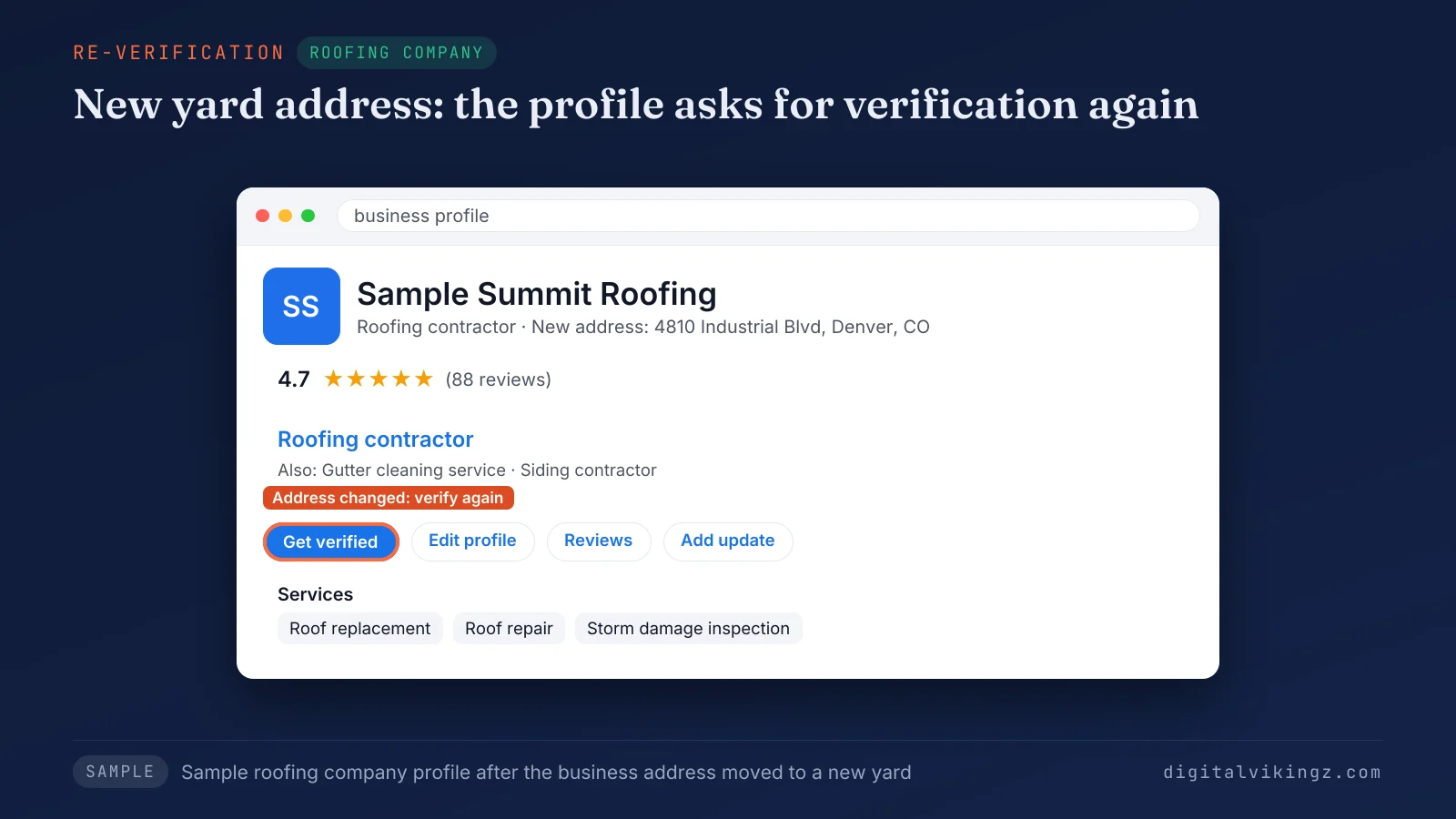
The sample roofing profile asks for verification again after the business address changed to a new yard. A planned move or rename should happen in one edit, with the video shots ready for the new address or sign.
Category edits carry the same risk, so the primary category steps for a Google Business Profile include waiting out any verification request. Address changes also appear in owner reports of suspensions, which follow a different process. A profile that passes re-verification returns to the verified state.
What happens after a Google Business Profile is verified?
A verified Google Business Profile can show its business details on Google Maps and Search, and the owner can then add managers and edit freely. Google states: "When your business is verified, you'll get a confirmation email."
Agencies and staff join as managers after verification, and none of them needs the verification code. Verification unlocks editing, so the profile work that decides map visibility starts after the confirmation email.
The next work is the profile itself: primary category, services, photos, hours and regular posts. Each of those fields is covered in a complete guide to Google Business Profile optimization. Edits to the name, address or primary category still follow Google's re-verification rules after the profile is live.
Our Local SEO and Google Business Profile optimization for new and moved locations sets up categories, services, posts and review replies once verification clears. The same service keeps the business name, address and phone consistent across other listings, matching the verified Google Business Profile.
A verified profile can still be missing from the map for other reasons.
Why is a verified Google Business Profile not showing on Google Maps?
A verified Google Business Profile can be missing from Google Maps while edits are reviewed, the address is hidden, or the map pin is wrong. A profile that does not match the search also stays out of view, even when verification is complete.
Seven reasons and their fix order sit in the checks for a business not showing on Google Maps. Verification is the first of those checks, because no other fix shows an unverified profile.
A Google Business Profile that disappears for a guideline reason has a different status.
Is a suspended Google Business Profile the same as an unverified one?
A suspended Google Business Profile is not the same as an unverified one, because suspension follows a guideline decision and needs an appeal. An unverified profile has not passed Google's verification check yet, while a suspended profile was removed from view after a review of its details.
Owners report suspensions right after sign-up or after an address change, and a new verification attempt does not lift them.
The appeal follows the steps for a Google Business Profile suspended by Google.
Every other state leads back to one verification step.
Which verification step comes next for a Google Business Profile?
The next verification step for a Google Business Profile depends on its state: not started, pending, rejected, out of options, or asked to verify again.
Each state matches one status shown in Business Profile Manager, so the owner reads the status before acting.
The next step for each verification state is listed below:
- Not started: Select Get verified and complete the method Google shows first.
- Pending: Leave the name, address and category untouched for five business days.
- Rejected: Open Review issues and record a new video with the missing item.
- Out of options: Prepare matching documents and contact support from Google's help page.
- Asked to verify again: Plan the edit once and film the new address or sign.
A profile that clears any of the five steps returns to the verified state until a key detail changes again.
An owner facing a move or a second rejection can book a strategy call with our team to review the profile details first. The call covers the name, address, category and video plan, and any later work is quoted in writing. A verified Google Business Profile then needs regular activity to stay current.
Google Business Profile verification questions
Does Google call business owners to verify a Google Business Profile?
Google can call or text the verified phone number on a Google Business Profile with automated messages, but Google never asks for a verification code. Google "may occasionally reach out using automated messages via call, text, or WhatsApp."
Can you verify a Google Business Profile on a computer?
A Google Business Profile verification video needs a mobile device, because Google requires the recording to be made and uploaded from a mobile device. Phone, text, email and postcard steps start from the profile itself.
Can an agency verify a Google Business Profile for a client?
An agency verifies a Google Business Profile for a client only as an authorized representative of that business, under Google's verification rules. Agencies are usually added as managers after the owner completes verification.
Can you delete a Google Business Profile verification video?
A Google Business Profile verification video can be deleted at any time, and Google deletes the video later when the owner does not. The option sits under Advanced settings, then Video uploads, then Delete videos.
Does verifying a Google Business Profile improve rankings?
Verifying a Google Business Profile lets the profile appear on Google Maps, and its ranking then rests on relevance, distance and prominence.
What should you do when a verification video does not upload?
A Google Business Profile verification video that does not upload should be uploaded again, because Google notes that some uploads fail on the first try.
A Google Business Profile is verified when the method Google offers is complete and the review passes, and every later fix starts from the profile status. The profile then stays active with Daily Google posts for newly verified businesses from Digital Vikingz. The page offers a free sample post written from the business website.