 Digital Vikingz

The generative AI performance report is a Google Search Console report that counts impressions of a site's pages in AI Overviews and AI Mode. The report sits under Performance in Google Search Console and appears once a site earns enough impressions in AI features.
The report shows impressions by page, country, device and date, counted under Google's standard impression rules. The report shows no clicks, position or queries, so a page that gets impressions and no clicks is read in the Performance report.
AI impressions already sit inside the Web search type of the Performance report, so the two reports are compared and never added. Reading the report takes five steps, ending with a monthly export into an automated weekly SEO and AEO report.
Five patterns in the report point to one likely cause each, including pages that rank in Google and are not cited by AI. Clicks, conversions and other AI assistants sit outside the report.
A full AI visibility report adds analytics and a prompt check of what ChatGPT and AI Overviews say about your business. The SEO Reporting and Attribution engagement at Digital Vikingz reports those rows per cluster every Monday.
Excluding a site from Search generative AI features removes the site's links from those features without changing rankings elsewhere in Search. The first step is a Pages tab export, followed by a free check with the AI Visibility Checker on the top page.
What is the generative AI performance report in Google Search Console?
The generative AI performance report is a Google Search Console report that counts impressions of a site's pages in AI Overviews and AI Mode. An impression is counted each time a link to the site is shown to a searcher inside one of the two AI features.
Google announced the report on 3 June 2026 and rolled the report out to all websites by 31 August 2026. The report covers Google Search and leaves Search Labs experiments out.
AI Overviews are AI summaries on the results page, and AI Mode is the conversational AI search experience of Google Search. Impressions are the only metric in the report. The report has a fixed place in the Google Search Console menu.
Where is the generative AI performance report in Google Search Console?
The generative AI performance report sits under Performance in the left menu of Google Search Console, as an entry named Generative AI. The path runs from Performance to Search results to Generative AI inside each verified property.
Google Search Console Help also opens the report directly from the Help page. The report opens with an impressions chart above a table of pages, countries, devices and dates.
Some properties show an empty entry or no entry at all.
Does every site have a generative AI performance report?
Not every site has a generative AI performance report, because the report appears only after a site earns enough impressions in AI features. A site excluded through the Search generative AI control shows no report either.
A missing report points to few AI impressions or an exclusion setting, not to a fault in the account. Sites with the report see one metric and five ways to group or filter that metric.
What does the generative AI performance report show?
The generative AI performance report shows one metric, impressions, grouped by four dimensions and filtered by two search types.
The data the generative AI performance report shows is listed below:
- Impressions: the number of times links to the site were shown in an AI feature on Google Search.
- Pages: the final URL each AI feature linked after redirects, mostly the canonical URL.
- Countries: the country where each search started.
- Devices: desktop, tablet or mobile, the device each searcher used.
- Dates: days, weeks or months, all in Pacific Time.
- Search type: Web: text-based for typed searches, and Web: multimodal for image searches from Google Lens, Circle to Search, uploaded images and Chrome image search.
The Pages tab is where most decisions start, because each row names one URL on the site.
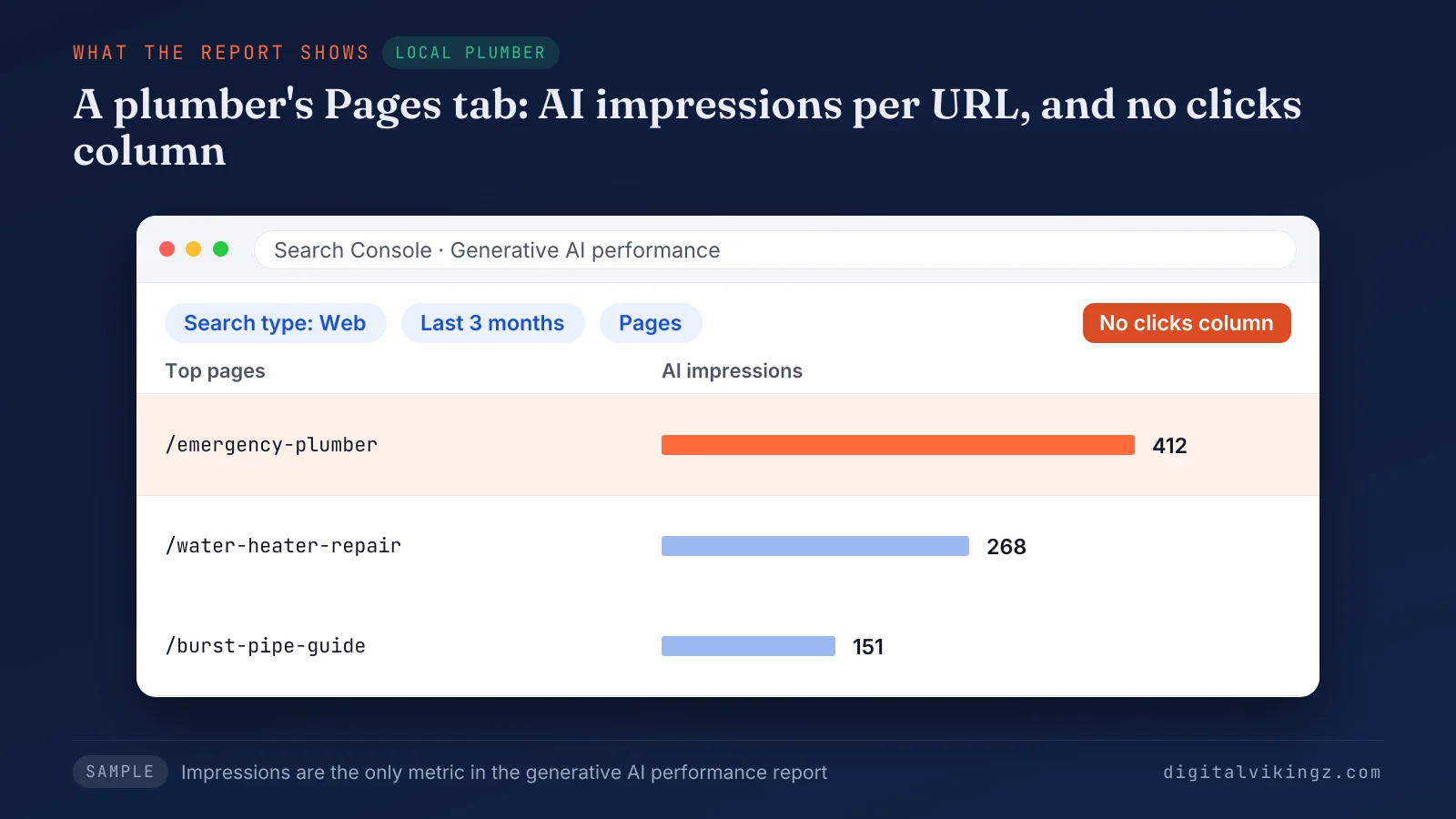
The sample plumber's emergency page shows 412 impressions, the water heater page 268 and the burst pipe guide 151. Each of those impressions follows Google's counting rules for the two AI features.
How does Google count an impression in AI Overviews and AI Mode?
Google counts an impression in AI Overviews and AI Mode under the standard impression rules of Google Search Console.
The counting rules for the two AI features are listed below:
- AI Overview position: one AI Overview takes one position, and every link inside the overview shares that position.
- AI Mode position: AI Mode follows the position rules of a results page, and a follow-up question counts as a new query.
- Click: a click on a link to an external page in either feature counts as a click in the Performance report.
Google AI Mode answers in a separate conversation, so one buyer can create several AI Mode queries in one visit. The missing columns of the report come next.
What does the generative AI performance report not show?
The generative AI performance report does not show clicks, click-through rate, average position, queries or the AI answer text.
The data missing from the generative AI performance report is listed below:
- Clicks and click-through rate: no column counts the clicks that AI features send to the site.
- Average position: no position column exists, although Google assigns AI features a position in the Performance report.
- Queries: no tab shows which searches triggered the AI answer.
- Answer text and competitors: the report shows no answer wording and no other sites named in the answer.
- API access: the Search Analytics API lists no generative AI search type, so data leaves only through the export button.
Google Search Console Help lists impressions as the only metric of the report as of November 2026. Google states in the launch post that more metrics may follow over time.
Clicks are the gap that readers of the report ask about most.
Does the generative AI performance report show clicks?
The generative AI performance report does not show clicks, and Google has given no date for AI click data as of November 2026. Clicks on links inside AI Overviews and AI Mode are counted in the Performance report. The clicks sit inside the Web search type, mixed with other web clicks.
Search Engine Roundtable reported on 2 November 2026 that Google's Gary Illyes said Google had nothing to announce on click data yet.
A page that gets impressions and no clicks shows the gap most clearly. Each cause of a page that gets impressions and no clicks leaves a different trace in the Performance report query table.
How is the generative AI performance report different from the Performance report?
The generative AI performance report isolates impressions from AI features, while the Performance report counts every web impression and click, AI features included.
The table below compares the generative AI performance report and the Performance report by the data each one holds:
| Attribute | Generative AI performance report | Performance report (Web search type) |
|---|---|---|
| AI features covered | AI Overviews and AI Mode only | All web results, AI features included |
| Metrics | Impressions | Clicks, impressions, click-through rate, average position |
| Queries | None | Query table |
| Search type | Web: text-based and Web: multimodal | Web, Image, Video and News |
| API access | None; export only | Search Analytics API |
| Best use | Exposure in AI answers | Traffic and rankings |
AI impressions are part of the Web impressions, so adding the two totals counts the same impressions twice.
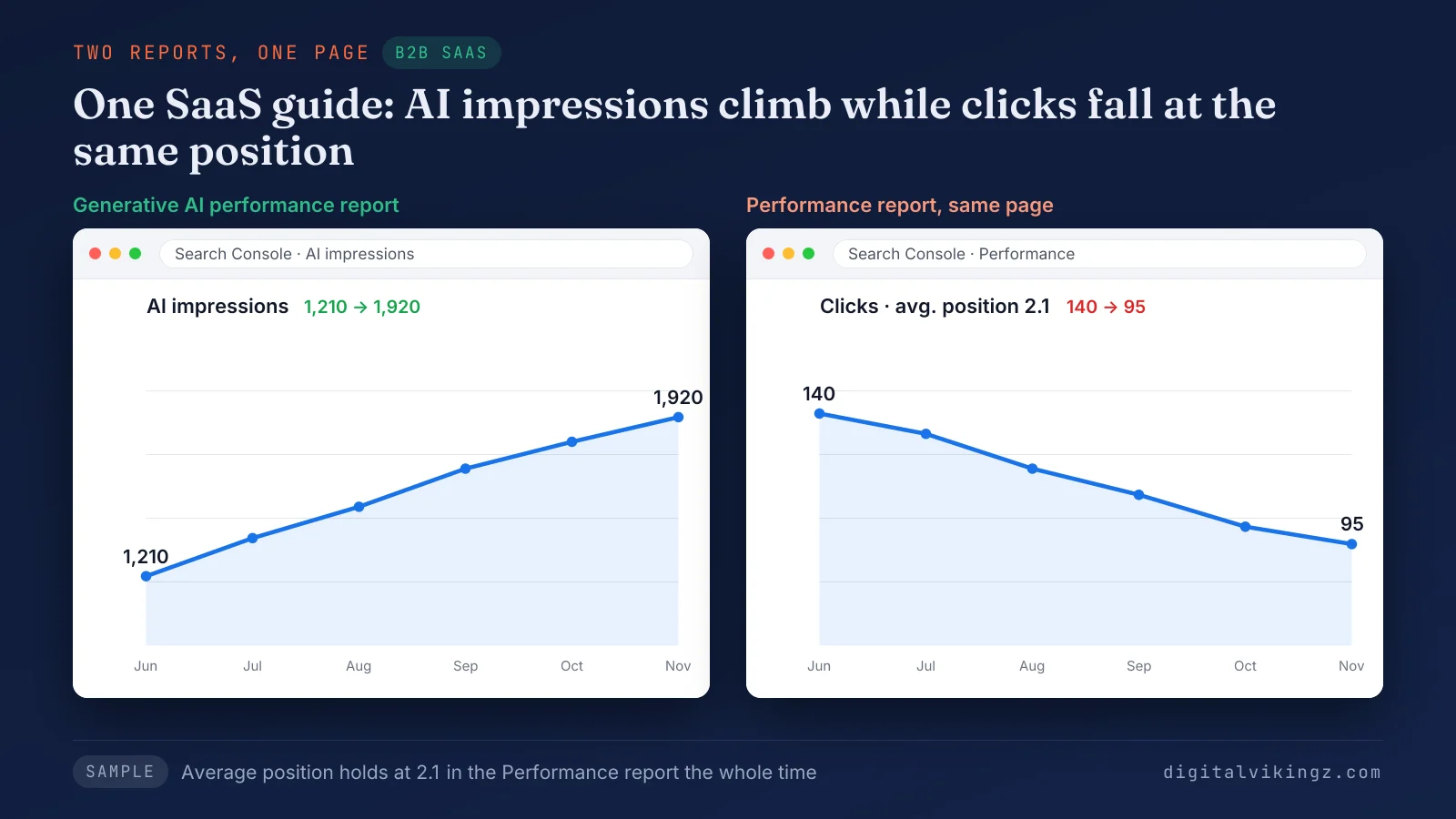
The sample SaaS guide earns 1,920 AI impressions, while the guide's clicks fall from 140 to 95 at an average position of 2.1. Five reading steps put both reports side by side.
How do you read the generative AI performance report?
Reading the generative AI performance report takes five steps, from setting the dates to exporting the result into a monthly report.
The five steps to read the generative AI performance report are listed below:
- Set two equal date ranges.
- Read the impressions trend on the chart.
- Group the Pages tab by page type.
- Match each page in the Performance report.
- Export the data and log the result each month.
Each step takes a few minutes once the dates are set.
1. Set two equal date ranges
Setting two equal date ranges, such as the last 28 days against the 28 days before, makes the impressions trend comparable. All dates in the report follow Pacific Time, the same as the Performance report.
The newest days can still change and show as a dotted line, so each range ends on the last complete day. Both ranges start after the first date with data on the chart.
A short log of publishing dates, page edits and setting changes sits beside the two ranges. The chart comes first once both ranges are set.
2. Read the impressions trend on the chart
Reading the impressions trend on the chart shows whether the site appears in AI answers more or less often over time. The chart totals impressions for the whole property, so two links from one site in one AI answer count once.
A URL filter switches the chart to one page, which isolates the trend of a key page. A rise or fall that lines up with a date in the change log points to that change first.
The chart names no pages, so the table comes next.
3. Group the Pages tab by page type
Grouping the Pages tab by page type shows which kind of page earns the AI impressions, such as service pages, guides or product pages. The Pages tab counts impressions per page, so the page rows can add up to more than the chart total.
Google Search Console Help limits the table to 1,000 rows, the same limit as the Performance report. Local service businesses group service and location pages, the same split a roofing SEO page plan for the map pack uses. B2B SaaS companies group guides and feature pages, and online stores group product pages and buying guides.
Impressions alone do not show which group earns visits.
4. Match each page in the Performance report
Matching each page in the Performance report adds the clicks, average position and queries that the generative AI performance report leaves out. The Performance report is set to the Web search type, the same dates and a filter for the same page.
The query table of that page shows which questions bring the impressions and which bring the clicks. Performance report clicks are never divided by AI impressions, because those clicks include every web result on the page.
The matched rows help only when the rows are kept month after month.
5. Export the data and log the result each month
Exporting the data each month builds a history of AI impressions, because the Search Analytics API does not return the generative AI data. The export button downloads both the chart and the table, and empty values marked with a tilde or a dash become zeros.
Each export sits in one sheet beside the matching Performance report rows for the same month.
The same sheet feeds the AI rows of a weekly SEO and AEO report. The five steps to build an automated weekly SEO and AEO report show where the monthly export lands.
What do patterns in the generative AI performance report mean?
Five patterns in the generative AI performance report each point to one likely cause and one next check in the Performance report.
The table below lists five patterns we read in the generative AI performance report, with a sample business, the likely cause and the next action:
| Pattern | Sample business | Likely cause | Next action |
|---|---|---|---|
| AI impressions rise while clicks fall and average position holds | B2B SaaS guide | The AI answer can settle the question before the click | Add a next step the answer lacks, such as a template or pricing |
| A page ranks in the top 10 and earns no AI impressions | Dental clinic treatment page | The page's answer passage is likely not chosen as a supporting link | Compare the passage with the pages the AI answer links |
| AI impressions sit on two or three pages only | Local plumber | Those pages likely hold short, standalone answers | Give sibling service pages the same answer-first structure |
| AI impressions fall on every page from one date | Any site | The Search generative AI control changed, or a sitewide ranking change landed | Check the control in Settings, then the Performance report trend |
| Multimodal impressions exceed text-based impressions on product pages | Ecommerce store | Shoppers can find the products through Google Lens or Circle to Search | Keep product images original and product details complete |
Pattern 4 is the only pattern that starts in Settings, because one setting can remove every AI impression within days.
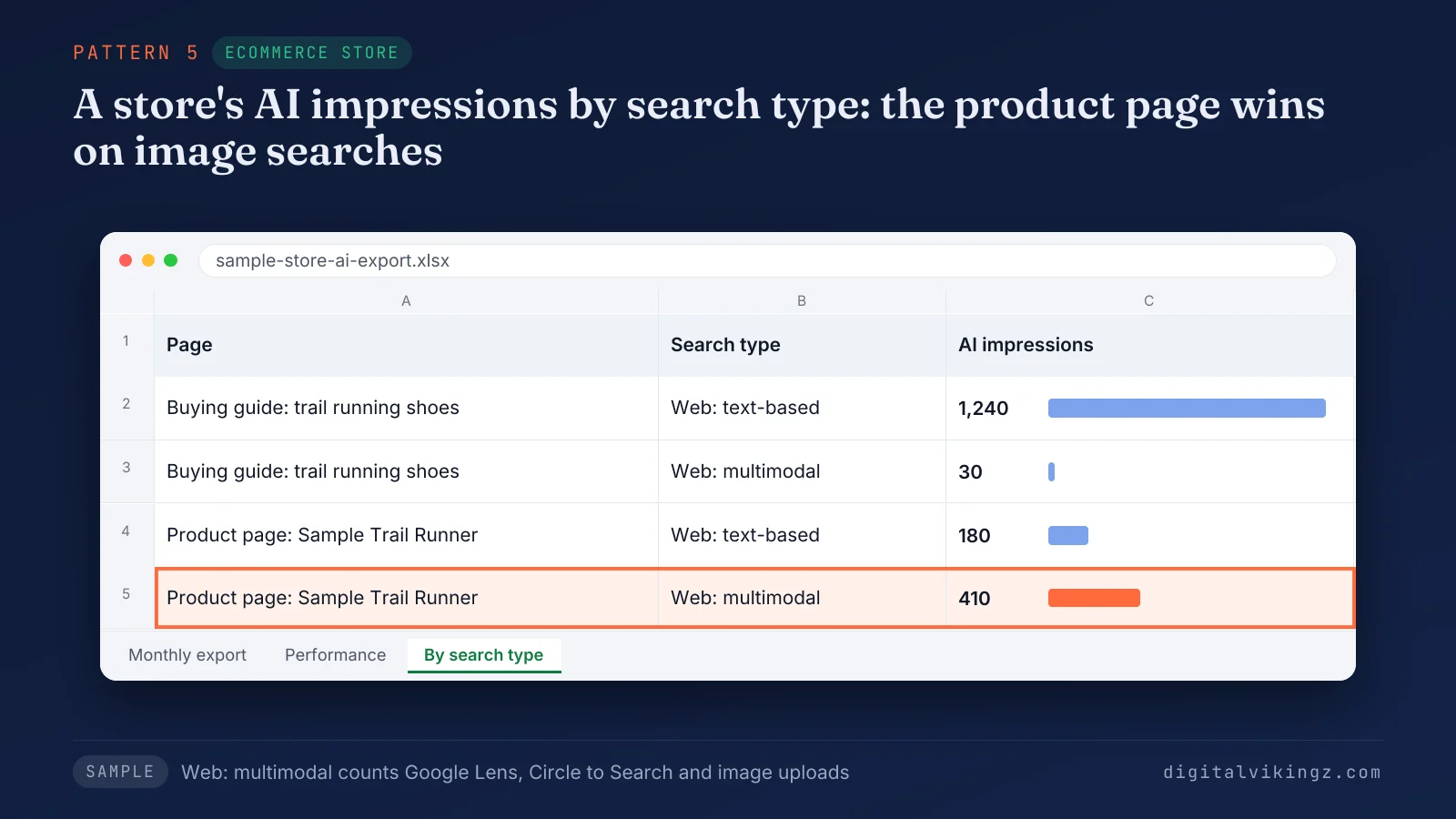
The sample buying guide earns 1,240 text-based and 30 multimodal AI impressions. The sample product page earns 180 text-based and 410 multimodal. Complete product details also shape how ChatGPT Shopping recommends Shopify products.
Pattern 2 is common on pages that rank in Google and are never linked in the AI answer. The fixes for pages that rank in Google and are not cited by AI start with the passage that answers the question. Each pattern still leaves the business value of the AI impressions unread.
How do you report AI visibility beyond the generative AI performance report?
An AI visibility report for a client or a team combines the generative AI performance report with clicks, conversions and a prompt check. Each added source answers one question the report leaves open.
The Performance report adds clicks, an analytics property adds conversions, and a prompt check adds the answer text and the competitors. Pages are reported in clusters, so one row covers every page that answers one topic. The monthly export from step 5 supplies the AI impressions row for each cluster.
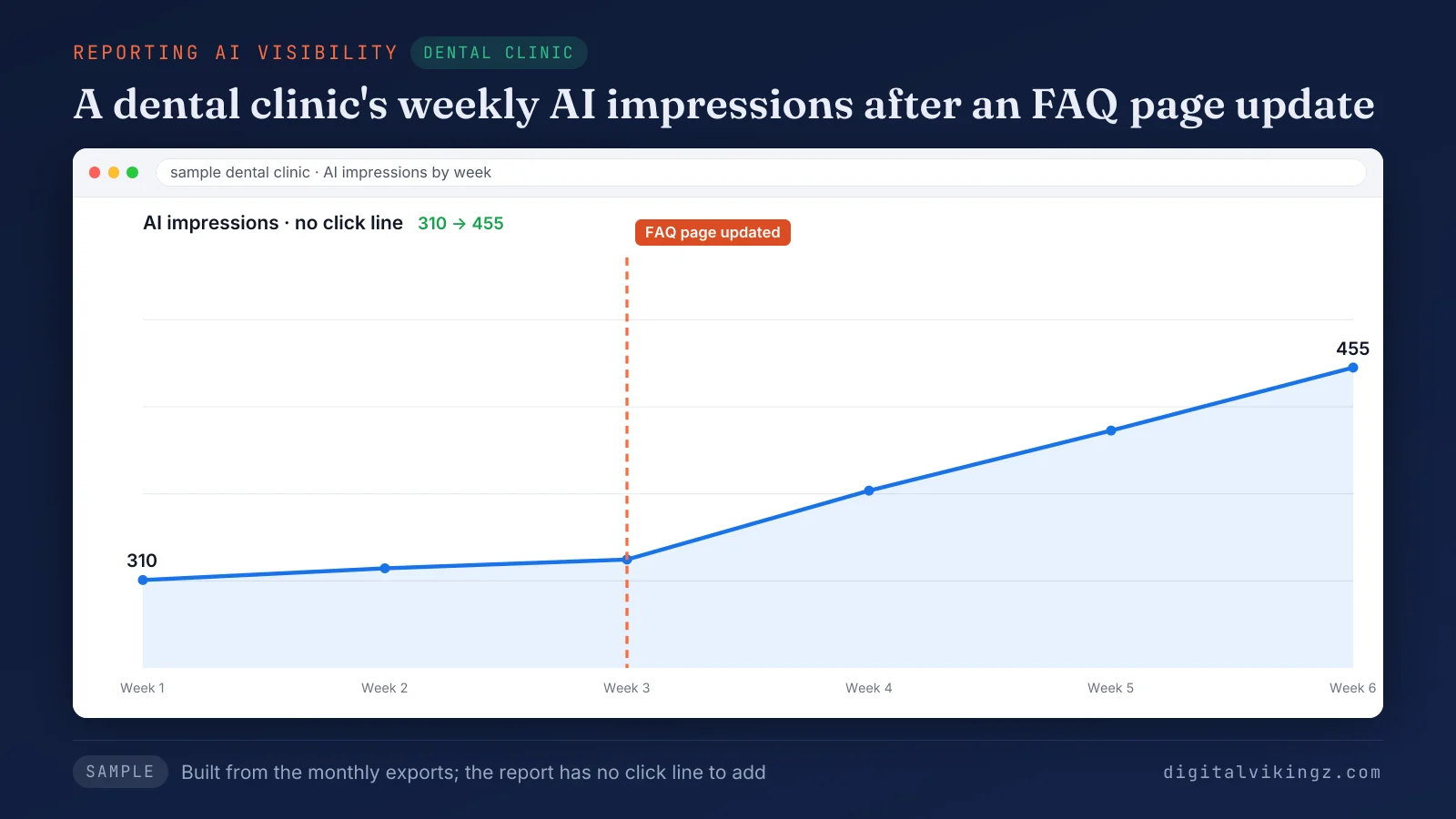
The sample clinic's weekly AI impressions rise from 310 to 455 after the FAQ page update, and no click line appears. The sample chart is built from the monthly exports, grouped by week.
SEO Reporting and Attribution ties each cluster to leads and revenue. Our SEO Reporting and Attribution engagement reports the AI rows per cluster beside leads and revenue every Monday.
Does the generative AI performance report cover ChatGPT or Perplexity?
The generative AI performance report does not cover ChatGPT, Perplexity, Gemini or Claude, because the report counts Google Search features only. Bing Webmaster Tools and ChatGPT Business Hub report their own AI counts, and Gemini, Perplexity and Claude offer no comparable site report.
The assistants without a report are read by asking a fixed set of buyer questions in a clean session.
The prompt check shows what ChatGPT and AI Overviews say about your business in the answer text. A five-step prompt check of what ChatGPT and AI Overviews say about your business fills the gap the report leaves.
How do you measure clicks from AI Overviews and AI Mode?
Clicks from AI Overviews and AI Mode are measured only inside Google organic clicks, in the Performance report and in analytics. No filter in Google Search Console separates those clicks from other web clicks.
Google states that clicks from results pages with AI Overviews are higher quality, with visitors more likely to spend more time on the site. An analytics property adds the time on site and the conversions for each landing page with AI impressions.
Landing pages from the Pages tab set the list of pages to check in analytics. Visits from ChatGPT, Perplexity and Gemini arrive as referral traffic under each assistant's source name, a separate setup in analytics. Some site owners weigh a different step: removing the site from AI features.
Should a business exclude its site from Search generative AI features?
A business should keep its site included in Search generative AI features unless the two reports together show a loss from AI visibility. The Search generative AI control sits in Settings, with three choices: include, exclude and inherit from the parent property.
Google Search Console Help states that exclusion removes the site's links and content from AI Overviews and AI Mode within 1 to 2 days. Some content takes longer to leave the features. An excluded site earns neither impressions nor traffic from those features.
Google states that the control is not a ranking signal for the rest of Search. The control does not stop AI training, which Google-Extended governs. A noindex rule removes a page from Google Search entirely.
The generative AI performance report is the evidence for that decision, read before and after any change.
Questions about the generative AI performance report
Does the generative AI performance report separate AI Overviews from AI Mode?
The generative AI performance report does not separate AI Overviews from AI Mode, because both features are counted in one series. A search of the same question in each feature shows which feature links the page, because the two features can choose different sources.
How far back does the generative AI performance report go?
The generative AI performance report holds data from 18 May 2026, according to Search Engine Roundtable's launch coverage. No earlier history exists in the report, so year-on-year comparisons for the same pages begin in May 2027.
Is there a generative AI performance report for Discover?
Google Search Console has a separate generative AI performance report for Discover, which counts impressions in generative AI features in Discover. Google's launch post on the Search Central blog lists the device breakdown for Search results only, not for Discover.
Does an AI impression mean the AI answer named the brand?
An AI impression does not mean the AI answer named the brand, because the count records a link to the site shown in the feature. A brand named in the answer text without a link earns no impression in the report.
Do high AI impressions mean strong Google rankings?
High AI impressions do not prove strong rankings, because Google says AI features link a wider set of pages than classic results. Rankings are read only in the Performance report, query by query, for the same pages and dates.
What is the first step with the generative AI performance report?
The first step is to export the Pages tab of the generative AI performance report and start a monthly history. The export shows where the site appears in Google's AI features.
The pages themselves hold the reasons for each pattern. Digital Vikingz built the AI Visibility Checker to read up to five public pages the way a crawler reads a page.
Run a free check with the AI Visibility Checker on the page with the most AI impressions. The next export shows whether the fixed page earns more AI impressions.